Common Copier Problems and How to Fix Them
Most copier faults are not the dramatic failures people imagine. They are the small, repeating annoyances that an office learns to work around until the machine finally refuses to cooperate on the busiest morning of the month. After years of service calls across Orange County, our technicians see the same faults turn up again and again, and a good share of them never needed a callout at all. Here is what those problems actually look like on the floor, what is worth checking before you pick up the phone, and the point where a quick reset becomes a job for a technician.
Paper Jams That Will Not Stop
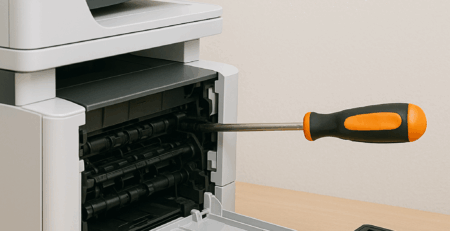
One jam a week is just paper. Three jams before lunch is a machine telling you something. The first place to look is the tray, not the rollers. Pull the tray fully out and watch how the stack sits against the guides. If the guides have drifted even a few millimetres, the sheets feed at an angle and snag every few pages. Reams that have been left open near a window also absorb moisture and curl, and curled paper jams far more than people expect in the dry Orange County air.
Mixing letterhead, labels, and plain stock in the same tray causes its own trouble, since each weight feeds differently. If the tray is set up correctly and jams still pile up, the pickup rollers have usually gone smooth and stopped gripping the top sheet. That is a routine roller replacement, not a reason to replace the machine.
A Line Down Every Page
A black or grey line in the exact same spot on every copy, including blank scans, almost always comes from the narrow strip of glass on the left that the document feeder reads through. A single fleck of toner there prints as a line on everything that passes. Wipe it with a dry microfibre cloth rather than a wet wipe, because moisture smears toner instead of lifting it.
If the line survives a proper clean, the fault has moved inside to the drum. A scratched or worn drum reproduces the same defect on every page until it is replaced, and that is work best left to a technician rather than something to pull apart by hand.
Prints Coming Out Faint
Pale output is not always an empty cartridge. Before you order toner, check whether the fade is even across the whole page or sits on one side. An even fade usually means low toner, and rocking the cartridge gently from side to side will redistribute what has settled and buy you a little time. A fade that is heavier on one edge points to the drum or developer rather than the toner, which is a different fix. It is also worth glancing at the density setting, which gets knocked down by accident more often than anyone admits.
Scan to Email Suddenly Stops
This feature rarely breaks on its own. It usually stops the week after an office moves to a new email provider or tightens its security, because scan to email depends on outgoing mail settings that live outside the copier. Microsoft 365 migrations are the most common trigger we see. The machine still scans fine, but the mail server details, the port, or the sending permissions have changed underneath it. The settings are fiddly and easy to lock yourself out of, so this is one worth handing to someone who knows the device.
Error Codes on the Screen
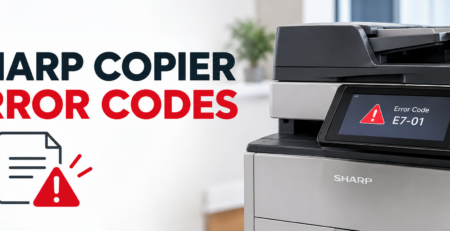
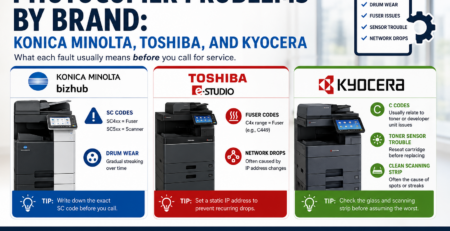
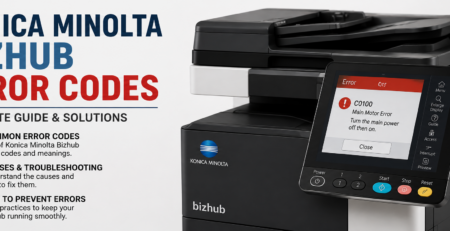
When a copier detects a fault it shows a code, and that code is the shortcut to the cause. A Kyocera C code, a Konica Minolta bizhub SC code, and a Toshiba e-STUDIO C44 code all mean different things, so the same number is not comparable across brands. Many codes are triggered by a stuck sensor or a cleared jam, and a full power cycle, off for a minute, then on again, clears them. The ones that come straight back, especially fuser related codes, point to a part that needs replacing. Write the exact code down before you call, because it tells the technician where to start and saves a diagnostic trip.
Slow Printing and Dropped Connections
A copier that has turned sluggish, or one that vanishes from the print queue without warning, is usually fighting the network rather than wearing out. Restart the machine and the router, then check that the printer driver on the affected computers is up to date. A common culprit in offices is a static printer address that gets reassigned by the router, which leaves every computer pointing at nothing. If the drops happen across several machines at once, the problem sits in the network setup and is worth having looked at properly before it spreads.
Where the Line Is
Everything above is fair to try yourself, and it clears a real share of day to day faults. Past that point, opening the print engine or guessing at internal parts usually costs more than it saves. Call a technician when jams or lines return after cleaning, when a code keeps coming back, or when quality keeps slipping despite fresh supplies. Our team handles copier and printer repair in Orange County across Toshiba, Kyocera, Konica Minolta, HP, Sharp, and Canon, and offices in Irvine and the cities around it count on us to get equipment running again with as little downtime as possible.
Catch It Early
Copiers almost always warn you before they quit. The jam that creeps in a little more often, the faint line that slowly darkens, the code that flickers up now and then. Acting on those early is the difference between a ten minute fix and a dead machine on deadline day. A regular service keeps the rollers, drum, and fuser in shape and catches that wear before it stops the office.
If your copier or printer is acting up and the quick checks are not holding, talk to the Effiservice repair team or call 714-331-5509 and we will help you get it sorted.
Wrinkled, curled, or creased output
Usually humidity in the paper or a worn fuser. Swap in a fresh, dry ream first. If clean paper still comes out creased, the fuser or feed path needs a technician.
Toner and cartridge errors
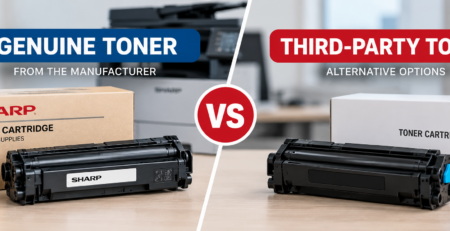
Low-toner warnings, a cartridge that is not recognized, or smearing. Reseat the cartridge, remove any protective tape on a new one, and use genuine or quality-matched toner. Smearing that rubs off is a fuser issue, not a toner issue.
The copier will not turn on
Check the wall outlet, the power cable, and the main power switch, which is sometimes separate from the front panel. If it still will not start, do not keep cycling the power. Book service.
Scanner or document feeder problems
Streaky scans point to a dirty glass or feeder strip, so clean these first with a lint-free cloth. Sheets that misfeed through the automatic document feeder point to worn feeder rollers that need replacing.
Related Guides
- Troubleshooting Common Laser Copier Problems: A Repair Guide
- Is Your Copier Worth Repairing, or Is It Time to Replace It?
- How Much Does Copier Repair Cost?
Frequently asked questions
What is the most common copier problem?
Paper jams, usually from worn rollers, damp paper, or an overfilled tray.
How do I clear a paper jam safely?
Turn the machine off, remove all paper in the direction of travel, then restart and run a test page. Do not pull paper backward.
Why are there lines on my copies but not my prints?
The scanner glass or mirror strip is dirty. Clean it with a lint-free cloth.
What does a copier error code mean?
It identifies a hardware fault such as a fuser or finisher issue. Note the code, restart once, and call service if it returns.
Why is my copier not printing?
Usually a connection, queue, or driver issue. Confirm it is online, clear the queue, and restart both devices.
Why is my copier so slow?
High-quality or duplex settings, a busy network, or low memory. Check the print settings and network first.
Why does paper come out wrinkled?
Damp paper or a worn fuser. Try a fresh, dry ream before assuming a hardware fault.
How often should I service my copier?
A preventive-maintenance visit once or twice a year, plus regular cleaning.
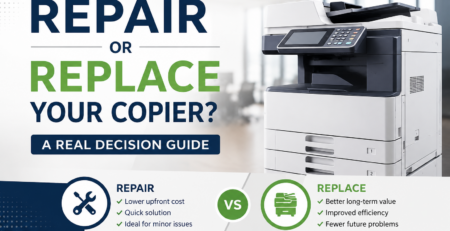
Should I repair or replace my copier?
Repair is usually far cheaper for business machines unless the copier is very old or failing repeatedly.
Do you offer on-site copier repair?
Yes. Effiservice provides on-site copier and printer repair across Orange County, with fast service available.
Copier problem you cannot fix in a few minutes? Call the pros.
Effiservice provides fast, on-site copier and printer repair across Orange County, including fast help in Irvine and nearby cities. Genuine parts, experienced technicians, and honest pricing. Call today at 714-331-5509.